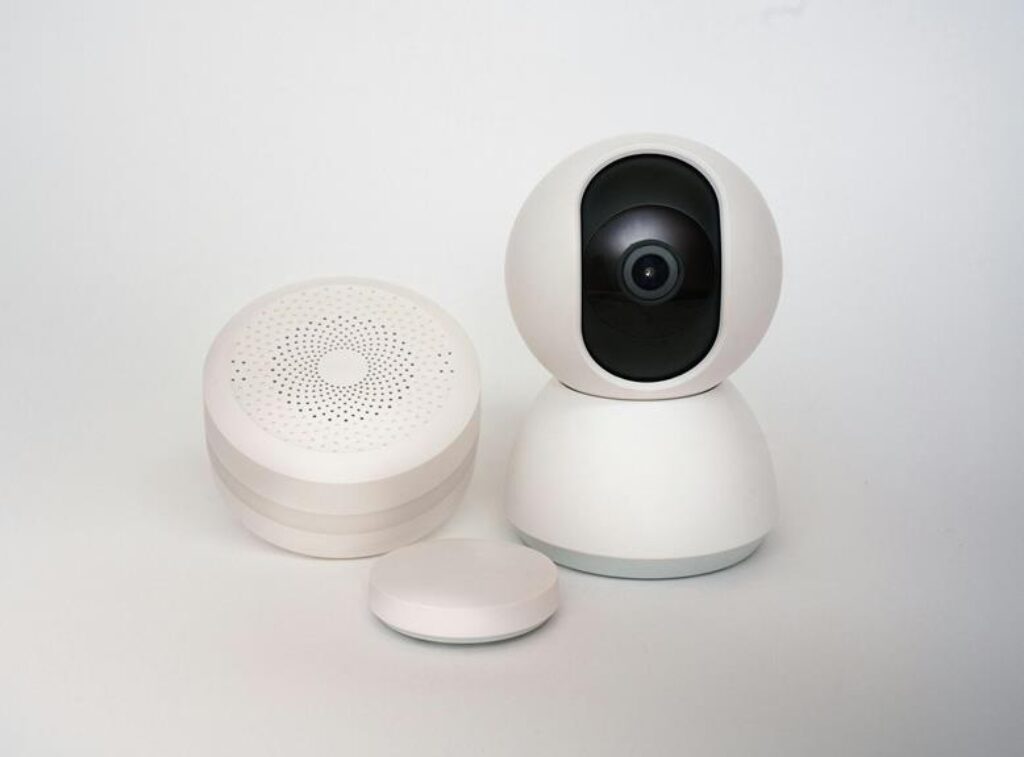
When installing a smart home security system, ensuring each component is correctly set up is crucial for optimal performance. From selecting the right devices to integrating them seamlessly into your home network, each step plays a vital role in safeguarding your property. As you begin the installation process, pay close attention to the details and follow the guidelines meticulously. Remember, a well-installed security system can provide you with peace of mind and protection, but overlooking even a small step could compromise its effectiveness.
Choosing the Right Components
When selecting components for your smart home security system, prioritize compatibility and functionality over aesthetics. It’s crucial to ensure that all the devices you choose can seamlessly work together to provide you with a comprehensive security solution. Start by researching different brands and models to guarantee that each component will integrate smoothly with your existing system. Look for devices that offer advanced features such as motion detection, night vision, and two-way audio for enhanced security monitoring.
Consider investing in a smart hub that can act as the central command center for your security system. This hub will allow you to control all your devices from one place, making it easier to manage and monitor your home’s security. Additionally, opt for components that offer remote access capabilities, enabling you to check in on your home from anywhere using your smartphone or computer.
Setting Up the Base Station
To begin setting up the base station for your smart home security system, locate a central spot in your home with a strong Wi-Fi signal. This location will ensure optimal connectivity between your security devices and the base station. Once you’ve found the ideal spot, plug in the base station to a power source and connect it to your home’s Wi-Fi network following the manufacturer’s instructions.
After connecting the base station to your Wi-Fi, proceed to download the corresponding mobile app on your smartphone or tablet. This app will serve as the control center for your smart security system, allowing you to monitor and manage your devices remotely. Follow the app’s setup wizard to link the base station to your account and customize your security settings.
Ensure that the base station is placed in a secure and easily accessible location, as it acts as the hub for all your security components. By setting up the base station correctly, you establish a solid foundation for a reliable and efficient smart home security system.
Installing Security Cameras
Now, as you move on to installing security cameras, you’ll expand the coverage of your smart home security system to enhance overall protection. Begin by selecting strategic locations for your cameras, such as entry points or areas with valuable items. Ensure the cameras have a clear line of sight and are out of reach from potential tampering.
Next, mount the cameras securely using the appropriate tools and hardware. Make sure they’re positioned at the right angle for optimal coverage. Connect the cameras to a power source and test them to ensure they’re functioning properly.
If your cameras are wireless, follow the manufacturer’s instructions to pair them with the base station. This may involve syncing them through a mobile app or using a QR code. Once connected, adjust the settings as needed, such as motion detection sensitivity or recording preferences.
Lastly, consider the camera’s storage options. Some systems offer cloud storage, while others may require a separate DVR or memory card. Choose the option that best fits your needs and budget. By installing security cameras effectively, you’ll significantly boost the security capabilities of your smart home system.
Connecting to Your Smartphone
You can effortlessly monitor your smart home security system by connecting it to your smartphone. Once your security system is installed and set up, linking it to your smartphone provides you with remote access and real-time notifications. To connect your security system to your smartphone, you typically need to download the corresponding app provided by the security system manufacturer. This app allows you to view live feeds from your security cameras, receive alerts for any detected motion or entry, and control your system settings from anywhere.
After downloading the app, follow the on-screen instructions to pair your security system with your smartphone. This usually involves creating an account, scanning a QR code, or entering a unique code provided by the system. Once the setup is complete, you can access your security system anytime, enabling you to check in on your home, receive alerts, and have peace of mind knowing you can monitor your property from the palm of your hand.
Trending Products

![Apple Watch SE 3 [GPS 40mm] Smartwatch with Starlight Aluminum Case with Starlight Sport Band – S/M. Fitness and Sleep Trackers, Heart Rate Monitor, Always-On Display, Water Resistant](https://m.media-amazon.com/images/I/31YiTby0pOL._SS500_.jpg)